Tasks studies - laboratory
Project maintained by dawidolko Hosted on GitHub Pages — Theme by dawidolko
OBJECT-ORIENTED PROGRAMMING
GUI JAVA SWING LABORATORIUM
JSPINNER, JSLIDER, JPROGRESSBAR, JMENUBAR, JMENU AND JMENUITEM, JTOOLBARM
JSPINNER
public class JSpinner extends JComponent implements Accessible
Commonly used Constructors:
| Constructor | Description |
|---|---|
JSpinner() |
It is used to construct a spinner with an Integer SpinnerNumberModel with initial value 0 and no minimum or maximum limits. |
JSpinner(SpinnerModel model) |
It is used to construct a spinner for a given model. |
Commonly used Methods:
| Methods | Description |
|---|---|
void addChangeListener(ChangeListener listener) |
It is used to add a listener to the list that is notified each time a change to the model occurs. |
Object getValue() |
It is used to return the current value of the mode. |
PRZYKŁAD
import javax.swing.*;
import javax.swing.event.*;
public class SpinnerExample {
public static void main(String[] args) {
  JFrame f=new JFrame("Spinner Example");
  final JLabel label = new JLabel();
  label.setHorizontalAlignment(JLabel.CENTER);
  label.setSize(250,100);
  SpinnerModel value =
  new SpinnerNumberModel(5, //initial value
  0, //minimum value
  10, //maximum value
  1); //step
  JSpinner spinner = new JSpinner(value);
  spinner.setBounds(100,100,50,30);
  f.add(spinner); f.add(label);
  f.setSize(300,300);
  f.setLayout(null);
  f.setVisible(true);
  spinner.addChangeListener(new ChangeListener() {
    public void stateChanged(ChangeEvent e) {
    label.setText("Value : " +
    ((JSpinner)e.getSource()).getValue());
  }
  });
}
}
JSLIDER
Commonly used Constructors:
| Constructor | Description |
|---|---|
JSlider() |
creates a slider with the initial value of 50 and range of 0 to 100. |
JSlider(int orientation) |
creates a slider with the specified orientation set by either JSlider.HORIZONTAL or JSlider.VERTICAL with the range 0 to 100 and initial value 50. |
JSlider(int min, int max) |
creates a horizontal slider using the given min and max. |
JSlider(int min, int max, int value) |
creates a horizontal slider using the given min, max and value. |
JSlider(int orientation, int min, int max, int value) |
creates a slider using the given orientation, min, max and value. |
Commonly used Methods:
| Methods | Description |
|---|---|
public void setMinorTickSpacing(int n) |
is used to set the minor tick spacing to the slider. |
public void setMajorTickSpacing(int n) |
is used to set the major tick spacing to the slider. |
public void setPaintTicks(boolean b) |
is used to determine whether tick marks are painted. |
public void setPaintLabels(boolean b) |
is used to determine whether labels are painted. |
public void setPaintTracks(boolean b) |
is used to determine whether track is painted. |
PRZYKŁAD
import javax.swing.*;
public class SliderExample extends JFrame{
  public SliderExample() {
  JSlider slider = new JSlider(JSlider.HORIZONTAL, 0, 50, 25);
  slider.setMinorTickSpacing(2);
  slider.setMajorTickSpacing(10);
  slider.setPaintTicks(true);
  slider.setPaintLabels(true);
  JPanel panel=new JPanel();
  panel.add(slider);
  add(panel);
}
  public static void main(String s[]) {
    SliderExample frame=new SliderExample();
      frame.pack();
      frame.setVisible(true);
}
JPROGRESSBAR
public class JProgressBar extends JComponent implements SwingConstants, Accessible
Commonly used Constructors:
| Constructor | Description |
|---|---|
JProgressBar() |
It is used to create a horizontal progress bar but no string text. |
JProgressBar(int min, int max) |
It is used to create a horizontal progress bar with the specified minimum and maximum value. |
JProgressBar(int orient) |
It is used to create a progress bar with the specified orientation, it can be either Vertical or Horizontal by using SwingConstants.VERTICAL and SwingConstants.HORIZONTAL constants. |
JProgressBar(int orient, int min, int max) |
It is used to create a progress bar with the specified orientation, minimum and maximum value. |
Commonly used Methods:
| Methods | Description |
|---|---|
void setStringPainted(boolean b) |
It is used to determine whether string should be displayed. |
void setString(String s) |
It is used to set value to the progress string. |
void setOrientation(int orientation) |
It is used to set the orientation, it may be either vertical or horizontal by using SwingConstants.VERTICAL and SwingConstants.HORIZONTAL constants. |
void setValue(int value) |
It is used to set the current value on the progress bar. |
PRZYKŁAD
import javax.swing.*;
public class ProgressBarExample extends JFrame{
  JProgressBar jb;
  int i=0,num=0;
  ProgressBarExample(){
  jb=new JProgressBar(0,2000);
  jb.setBounds(40,40,160,30);
  jb.setValue(0);
  jb.setStringPainted(true);
  add(jb);
  setSize(250,150);
  setLayout(null);
}
public void iterate(){
  while(i<=2000){
  jb.setValue(i);
  i=i+20;
  try{Thread.sleep(150);}catch(Exception e){}
  }
}
public static void main(String[] args) {
  ProgressBarExample m=new ProgressBarExample();
  m.setVisible(true);
  m.iterate();
  }
}
JMENUBAR, JMENU AND JMENUITEM
public class JMenuBar extends JComponent implements MenuElement, Accessible
public class JMenu extends JMenuItem implements MenuElement, Accessible
public class JMenuItem extends AbstractButton implements Accessible,
MenuElement
PRZYKŁAD JAVA JMENUITEM AND JMENU EXAMPLE
import javax.swing.*;
class MenuExample
{
  JMenu menu, submenu;
  JMenuItem i1, i2, i3, i4, i5;
  MenuExample(){
  JFrame f= new JFrame("Menu and MenuItem Example");
  JMenuBar mb=new JMenuBar();
  menu=new JMenu("Menu");
  submenu=new JMenu("Sub Menu");
  i1=new JMenuItem("Item 1");
  i2=new JMenuItem("Item 2");
  i3=new JMenuItem("Item 3");
  i4=new JMenuItem("Item 4");
  i5=new JMenuItem("Item 5");
  menu.add(i1); menu.add(i2); menu.add(i3);
  submenu.add(i4); submenu.add(i5);
  menu.add(submenu);
  mb.add(menu);
  f.setJMenuBar(mb);
  f.setSize(400,400);
  f.setLayout(null);
  f.setVisible(true);
}
  public static void main(String args[])
  {
  new MenuExample();
  }
}
JTABLE POPUP MENU EXAMPLE
import javax.swing.JFrame;
import javax.swing.JMenuItem;
import javax.swing.JPopupMenu;
import javax.swing.JScrollPane;
import javax.swing.JTable;
import javax.swing.SwingUtilities;
import javax.swing.table.DefaultTableModel;
public class JTablePopupMenuExample extends JFrame implements
  ActionListener {
    private JTable table;
    private DefaultTableModel tableModel;
    private JPopupMenu popupMenu;
    private JMenuItem menuItemAdd;
    private JMenuItem menuItemRemove;
    private JMenuItem menuItemRemoveAll;
    public JTablePopupMenuExample() {
    super("JTable Popup Menu Example");
    // sample table data
    String[] columnNames = new String[] {"Title", "Author",
    "Publisher", "Published Date", "Pages", "Rating"};
    String[][] rowData = new String[][] {
    {"Effective Java", "Joshua Bloch", "Addision-Wesley", "May 08th
    2008", "346", "5"},
    {"Thinking in Java", "Bruce Eckel", "Prentice Hall", "Feb 26th
    2006", "1150", "4"},
    {"Head First Java", "Kathy Sierra & Bert Bates", "O'Reilly
    Media", "Feb 09th 2005", "688", "4.5"},};
    // constructs the table with sample data
    tableModel = new DefaultTableModel(rowData, columnNames);
    table = new JTable(tableModel);
    // constructs the popup menu
    popupMenu = new JPopupMenu();
    menuItemAdd = new JMenuItem("Add New Row");
    menuItemRemove = new JMenuItem("Remove Current Row");
    menuItemRemoveAll = new JMenuItem("Remove All Rows");
    menuItemAdd.addActionListener(this);
    menuItemRemove.addActionListener(this);
    menuItemRemoveAll.addActionListener(this);
    popupMenu.add(menuItemAdd);
    popupMenu.add(menuItemRemove);
    popupMenu.add(menuItemRemoveAll);
    // sets the popup menu for the table
    table.setComponentPopupMenu(popupMenu);
    table.addMouseListener(new TableMouseListener(table));
    // adds the table to the frame
    add(new JScrollPane(table));
    setDefaultCloseOperation(JFrame.EXIT_ON_CLOSE);
    setSize(640, 150);
    setLocationRelativeTo(null);
}
public static void main(String[] args) {
  SwingUtilities.invokeLater(new Runnable() {
  @Override
  public void run() {
    new JTablePopupMenuExample().setVisible(true);
  }
  });
}
@Override
public void actionPerformed(ActionEvent event) {
  JMenuItem menu = (JMenuItem) event.getSource();
if (menu == menuItemAdd) {
  addNewRow();
} else if (menu == menuItemRemove) {
  removeCurrentRow();
} else if (menu == menuItemRemoveAll) {
  removeAllRows();
  }
}
private void addNewRow() {
  tableModel.addRow(new String[0]);
}
private void removeCurrentRow() {
  int selectedRow = table.getSelectedRow();
  tableModel.removeRow(selectedRow);
}
private void removeAllRows() {
  int rowCount = tableModel.getRowCount();
  for (int i = 0; i < rowCount; i++) {
  tableModel.removeRow(0);
  }
  }
}
import javax.swing.JTable;
public class TableMouseListener extends MouseAdapter {
  private JTable table;
public TableMouseListener(JTable table) {
  this.table = table;
}
@Override
public void mousePressed(MouseEvent event) {
  // selects the row at which point the mouse is clicked
  Point point = event.getPoint();
  int currentRow = table.rowAtPoint(point);
  table.setRowSelectionInterval(currentRow, currentRow);
  }
}
PRZYKŁAD JAVA SWING DRAG AND DROP
package DnD;
import java.awt.BorderLayout;
import java.awt.Container;
import java.awt.datatransfer.DataFlavor;
import java.awt.datatransfer.StringSelection;
import java.awt.datatransfer.Transferable;
import javax.swing.Box;
import javax.swing.DefaultListModel;
import javax.swing.DropMode;
import javax.swing.JComponent;
import javax.swing.JFrame;
import javax.swing.JLabel;
import javax.swing.JList;
import javax.swing.JScrollPane;
import javax.swing.JTextField;
import javax.swing.ListSelectionModel;
import javax.swing.SwingUtilities;
import javax.swing.TransferHandler;

public class Main extends JFrame {
  private JTextField newTextField = new JTextField(10);
  private JList<String> sourceList = new JList<>(new
  DefaultListModel<>());
  private JList<String> destList = new JList<>(new DefaultListModel<>());
  public Main() {
    for (int i = 0; i < 15; i++) {
    ((DefaultListModel<String>) sourceList.getModel()).add(i, "A "
    + i);
    ((DefaultListModel<String>) destList.getModel()).add(i, "B " +
    i);
    }
    Box nameBox = Box.createHorizontalBox();
    nameBox.add(new JLabel("New:"));
    nameBox.add(newTextField);
    Box sourceBox = Box.createVerticalBox();
    sourceBox.add(new JLabel("Source"));
    sourceBox.add(new JScrollPane(sourceList));
    Box destBox = Box.createVerticalBox();
    destBox.add(new JLabel("Destination"));
    destBox.add(new JScrollPane(destList));
    Box listBox = Box.createHorizontalBox();
    listBox.add(sourceBox);
    listBox.add(destBox);
    Box allBox = Box.createVerticalBox();
    allBox.add(nameBox);
    allBox.add(listBox);
    this.getContentPane().add(allBox, BorderLayout.CENTER);
    sourceList.setSelectionMode(ListSelectionModel.SINGLE_SELECTION);
    destList.setSelectionMode(ListSelectionModel.SINGLE_SELECTION);
    newTextField.setDragEnabled(true);
    sourceList.setDragEnabled(true);
    destList.setDragEnabled(true);
    sourceList.setDropMode(DropMode.INSERT);
    destList.setDropMode(DropMode.INSERT);
    sourceList.setTransferHandler(new ListTransferHandler());
    destList.setTransferHandler(new ListTransferHandler());
  }
    public static void main(String[] args) {
    SwingUtilities.invokeLater(() -> {
      Main frame = new Main();
      frame.pack();
      frame.setVisible(true);
    });
  }
  }
    class ListTransferHandler extends TransferHandler {
    @Override
      public int getSourceActions(JComponent c) {
      return TransferHandler.COPY_OR_MOVE;
  }
    @Override
    protected Transferable createTransferable(JComponent source) {
      JList<String> sourceList = (JList<String>) source;
      String data = sourceList.getSelectedValue();
      Transferable t = new StringSelection(data);
      return t;
    }
    @Override
    protected void exportDone(JComponent source, Transferable data, int
    action) {
      @SuppressWarnings("unchecked")
      JList<String> sourceList = (JList<String>) source;
      String movedItem = sourceList.getSelectedValue();
      if (action == TransferHandler.MOVE) {
      DefaultListModel<String> listModel = (DefaultListModel<String>)
      sourceList
      .getModel();
      listModel.removeElement(movedItem);
      }
    }
    @Override
    public boolean canImport(TransferHandler.TransferSupport support) {
      if (!support.isDrop()) {
        return false;
    }
      return support.isDataFlavorSupported(DataFlavor.stringFlavor);
    }
    @Override
    public boolean importData(TransferHandler.TransferSupport support) {
      if (!this.canImport(support)) {
        return false;
    }
    Transferable t = support.getTransferable();
    String data = null;
    try {
    data = (String) t.getTransferData(DataFlavor.stringFlavor);
      if (data == null) {
        return false;
    }
    } catch (Exception e) {
    e.printStackTrace();
      return false;
    }
    JList.DropLocation dropLocation = (JList.DropLocation) support
    .getDropLocation();
    int dropIndex = dropLocation.getIndex();
    JList<String> targetList = (JList<String>) support.getComponent();
    DefaultListModel<String> listModel = (DefaultListModel<String>)
    targetList
    .getModel();
    if (dropLocation.isInsert()) {
    listModel.add(dropIndex, data);
    } else {
    listModel.set(dropIndex, data);
    }
      return true;
    }
}
Tasks to solve yourself
Task 1.
Create an application for project management based on the Kanban method, you can find a description of the method at: link , link
Application mockup: The mockup presented below should be treated as an illustration. Its purpose is to illustrate the elements that are required in the application. However, specific Java components should be selected at your own discretion.
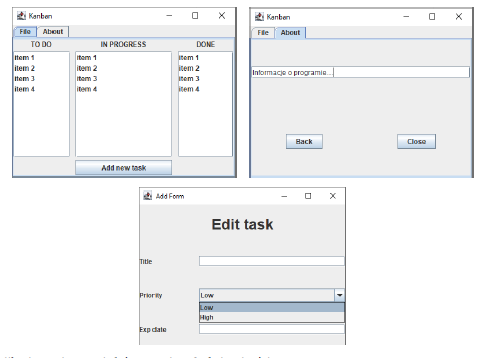
The application should have the following functionalities:
• Adding a new task using the form that is displayed after pressing the “Add new task” button. The form allows you to enter information such as: title, description, priority, expiration date (use JDateChooser).
• A new task will appear on the “TODO” list by default
• When you hover over an item from the list, a Tooltip containing a description of the task should appear (use the setToolTipText() method).
• When you right-click on an item from the list, a Menu should appear with two options:
o Delete (deletes the item)
o Edit (displays a form to edit the task).
(Tip: use a popup menu – see the example in the materials for creation.)
• It is possible to move tasks between lists – any implementation (dedicated button or drag-and-drop (analyze the example of using DaD)
• Take care of the readability and ergonomics of the application.
Task 2
Create an application to manage the customer database. Below are the views that the application should contain (you do not have to stick to a 1:1 view).
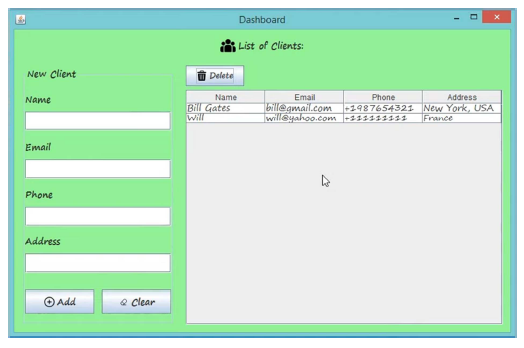
The application should have the following functionalities:
• Adding a customer through the appropriate fields with validation – all fields must be completed.
• The Clear button clears the fields
• Add – checks if the fields are completed and adds the customer to the database.
• After selecting the customer in the table and clicking Delete, we delete the selected record.